
Download Screen Recorder – Free HD Screen Capture Tool
Overview
Screen Recorder is a lightweight yet powerful desktop application designed to capture every pixel of your screen in crystal‑clear HD quality. Whether you are producing tutorial videos, recording gameplay, or preserving a live webinar for later reference, this tool delivers smooth, high‑resolution recordings without demanding advanced technical knowledge. The interface follows a clean, minimalist design that lets you start, pause, and stop recordings with a single click, while offering optional overlays such as cursor highlighting and keystroke visualization.
One of the standout qualities of Screen Recorder is its flexibility: it supports a broad range of screen sizes—from full‑HD monitors to ultra‑wide 4K displays—allowing you to tailor the capture area to your exact needs. Export options are equally versatile, covering popular formats like MP4, AVI, and WebM, which means you can instantly share your videos on platforms such as YouTube, Vimeo, or any internal learning management system. The application also includes a built‑in video compressor that reduces file size without sacrificing visual fidelity, a crucial feature for users who need to upload recordings on limited bandwidth connections.
In short, Screen Recorder blends simplicity with professional‑grade capabilities, making it an ideal choice for educators, gamers, developers, and anyone who wants to turn screen activity into polished video content.
Features
- Full‑HD (1080p) and 4K screen capture with adjustable frame rates up to 60 fps.
- Customizable capture area: full screen, specific window, or user‑defined region.
- Multiple output formats: MP4, AVI, WebM, and GIF for animated previews.
- Real‑time video compression to keep file sizes manageable.
- Cursor highlight, keystroke overlay, and optional webcam picture‑in‑picture.
- One‑click start/stop controls with hot‑key support for hands‑free operation.
- Built‑in audio capture from system sound, microphone, or both simultaneously.
- Automatic saving to a user‑specified folder with timestamped filenames.
- Free updates and a secure, ad‑free experience.
- Cross‑platform compatibility: Windows 7‑11, macOS 10.13+, Linux (via Snap/Flatpak).
Installation & Usage
Getting Screen Recorder up and running is intentionally straightforward. Begin by visiting the official download page and clicking the Download button that matches your operating system. For Windows users, the installer is a self‑extracting .exe file; macOS users receive a signed .dmg package, and Linux enthusiasts can choose a .snap or .flatpak bundle. Once the file is saved, run the installer and follow the on‑screen prompts—accept the license agreement, choose an installation directory, and let the wizard complete the process. The entire setup typically finishes within two minutes, even on modest hardware.
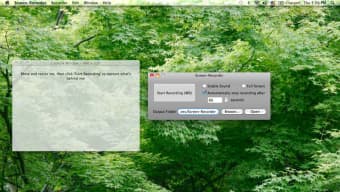
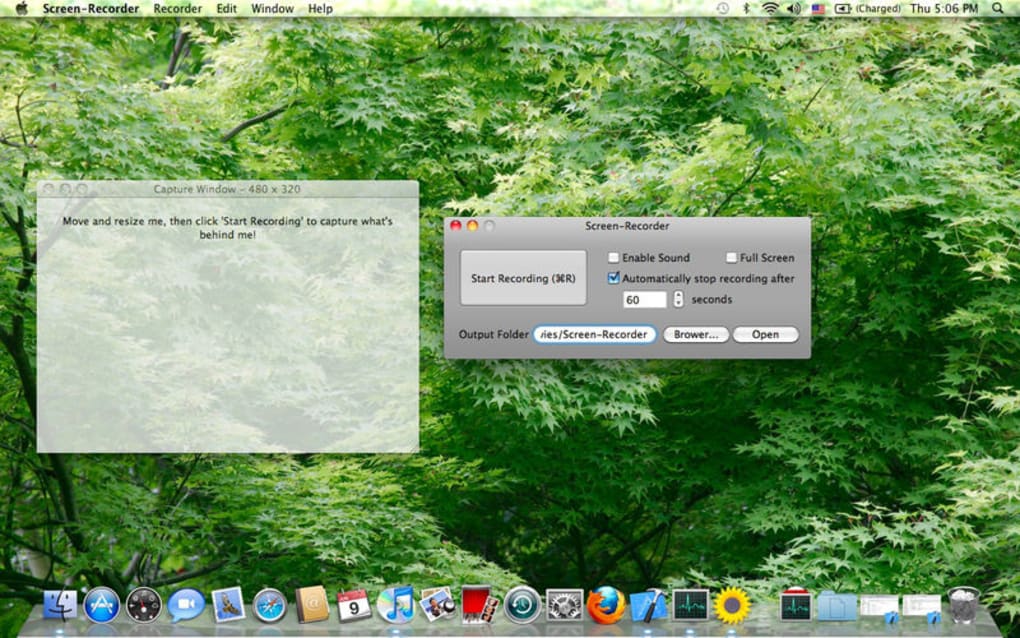
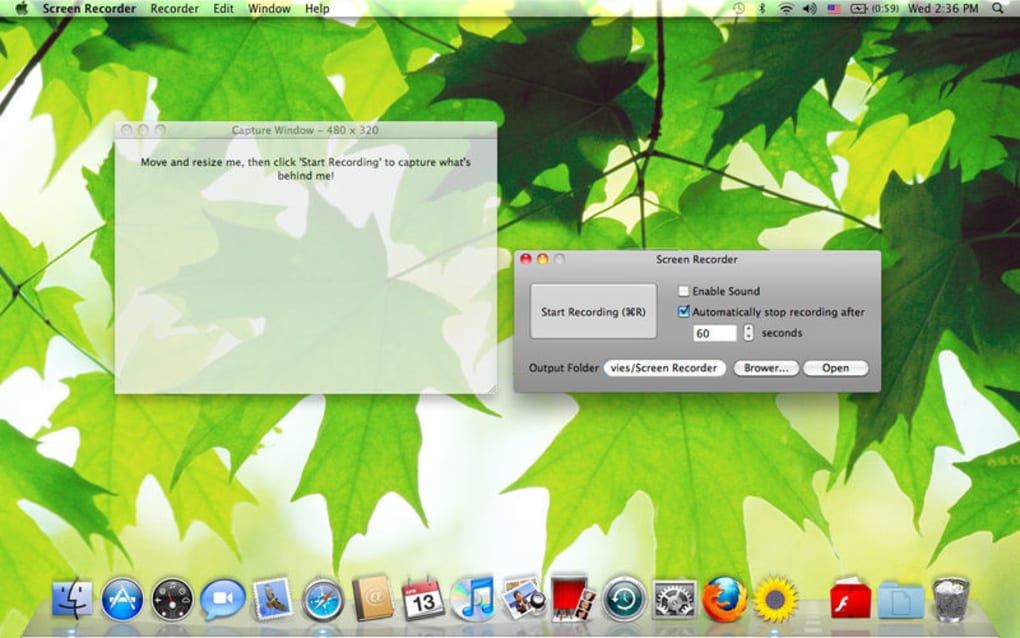
After installation, launch the application from your desktop shortcut or application menu. The main window presents a clean toolbar with three primary buttons: Record, Pause, and Stop. To start a capture, click Record or press the default hot‑key Ctrl + Shift + R.
A small overlay will appear, allowing you to select the capture mode—full screen, active window, or a custom rectangle. Adjust additional settings such as frame rate, audio source, and output format through the gear icon. When you’re ready, click Start Recording.
The software records silently in the background, displaying a discreet timer in the corner of the screen.
To finish, press Stop or hit the hot‑key Ctrl + Shift + S. The video is instantly saved to the default folder (or a custom location you specified) and opens in your default media player for quick review. If you need to edit the video—trim the beginning or add annotations—you can launch the built‑in editor from the post‑recording dialog. The editor is basic but sufficient for most tutorial creators, offering cut, crop, and overlay functions without requiring a separate program.
Conclusion
Pros
- High‑definition recording with support for 4K displays.
- User‑friendly interface that requires no technical expertise.
- Extensive output format selection and real‑time compression.
- Hot‑key shortcuts for seamless, hands‑free operation.
- Free updates and ad‑free experience.
- Cross‑platform support for Windows, macOS, and Linux.
Cons
- Lacks advanced video editing features (requires external editor for complex edits).
- No built‑in streaming capability; focused solely on local recording.
- Advanced audio mixing (multiple tracks) is not available.
Frequently Asked Questions
Is Screen Recorder free to use?
Yes, Screen Recorder is completely free. You can download, install, and use all core features without any subscription or hidden fees.
Can I record my webcam while capturing the screen?
Absolutely. The application includes a picture‑in‑picture mode that lets you overlay webcam footage onto your screen capture, perfect for personal tutorials.
What audio sources does Screen Recorder support?
You can capture system audio, microphone input, or both simultaneously. The audio source can be switched in the settings panel before you start recording.
Is the software compatible with older Windows versions?
Screen Recorder runs on Windows 7, 8, 10, and 11. For the best performance, we recommend Windows 10 or newer.
How do I share the recordings after I finish?
Recordings are saved in standard video formats, so you can upload them directly to YouTube, Vimeo, Google Drive, or attach them to emails. The built‑in share button opens your default file explorer at the location of the saved file for quick access.
If you’re looking for a reliable, free, and secure way to capture high‑quality video of your desktop, Screen Recorder checks every box. Its straightforward workflow, robust feature set, and cross‑platform availability make it a top choice for educators, gamers, and professionals alike. Download Screen Recorder today and start turning your screen actions into polished video tutorials in minutes.







